How to Use Meta Muse AI: Complete Beginner’s Guide for 2026
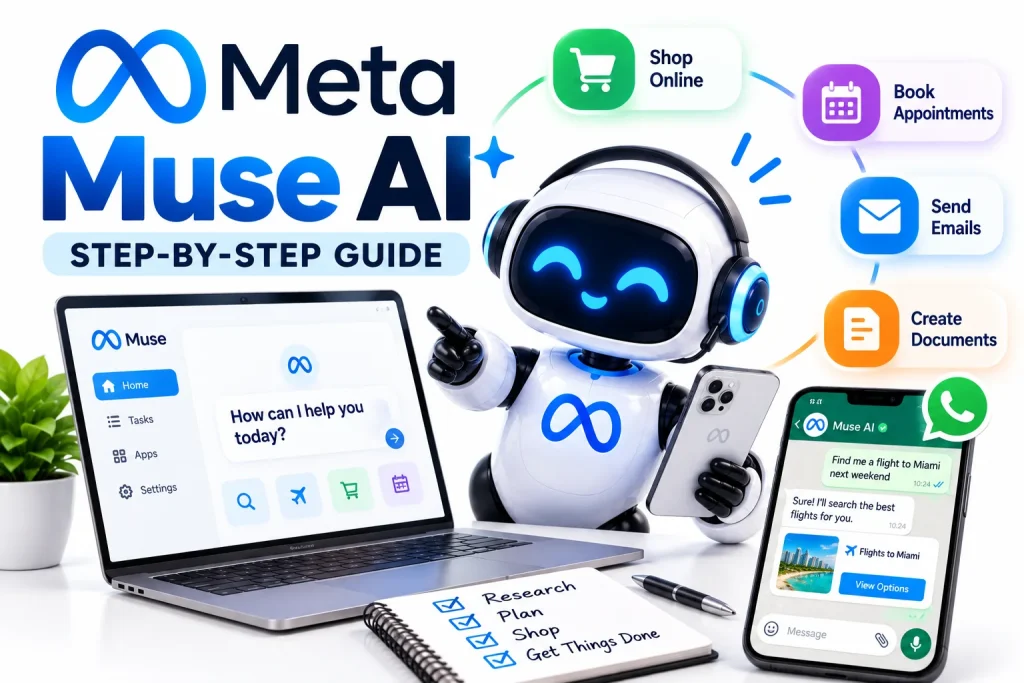
How to Use Meta Muse AI
Meta’s new Muse AI personal agent is attracting attention because it is designed to do more than answer questions.
Instead of simply telling you how to complete a task, Muse can potentially browse websites, work with connected apps, fill out forms, create documents, monitor information, book appointments, make purchases and continue working after you close the app.
That makes learning how to use Meta Muse AI different from learning how to use a traditional chatbot.
With a chatbot, you usually ask a question and receive an answer.
With Muse, you can give the AI a goal and allow it to complete multiple approved steps toward that goal.
Meta launched Muse in the United States on September 8, 2026. The company says users can interact with Muse through its dedicated apps, the web and WhatsApp. Muse runs through a dedicated cloud environment called Muse Secure VM and asks for user approval before certain sensitive actions.
This guide walks through how to start using Meta Muse, connect your apps, assign tasks, use Muse through WhatsApp, shop with the agent and control what it is allowed to do.
What Is Meta Muse AI?
Meta Muse is a personal AI agent developed by Meta.
It belongs to a growing category known as agentic AI.
Traditional generative AI primarily creates answers or content.
Agentic AI is designed to take actions toward a goal.
For example, you might ask an ordinary AI assistant:
“Find three good hotels in Miami.”
The assistant may give you a list.
With an AI agent such as Muse, the workflow can potentially go further:
- Search for hotels.
- Compare options.
- Check availability.
- Review prices.
- Open booking pages.
- Present suitable choices.
- Complete permitted booking steps after approval.
Meta says Muse can browse the web, complete tasks, make purchases, create documents, generate images, connect to apps, set reminders, track goals and monitor information in the background.
If you want a broader explanation before following this tutorial, read What Is Meta Muse AI? Features, Shopping, WhatsApp & Safety Explained on our site.
How to Get Meta Muse AI
Muse is available through several platforms.
Meta currently provides access through:
- iPhone
- Android
- The web
- macOS
Meta says the mobile Muse app is available free with usage limits. A Mac version is also available and can work with permitted desktop resources including files, Messages, Calendar and Notes.
Availability can vary by country and device, so check Meta’s current Muse availability before assuming the service is supported where you live.
How to Use Meta Muse AI Step by Step
Getting started with Muse is designed to be relatively straightforward.
Step 1: Open Muse
Start by opening the Muse app or Muse web experience.
If you are using a supported Meta account, follow the sign-in instructions presented by the service.
You can also interact with Muse through WhatsApp where available.
Step 2: Start With a Simple Task
Do not begin by giving Muse control over a complicated project.
Start with something easy to evaluate.
For example:
“Find three highly rated Italian restaurants near downtown Austin for Friday evening.”
Or:
“Research five standing desks under $400 and compare their dimensions.”
Or:
“Create a checklist for planning a three-day business trip.”
Simple tasks allow you to understand how Muse approaches work before you give it additional access.
Step 3: Review Muse’s Plan
For larger tasks, Muse may determine that it needs to perform several steps.
Review what it intends to do.
Ask yourself:
- Does the plan match what I requested?
- Does Muse need access to another app?
- Is it going to send something?
- Will it make a purchase?
- Does it need personal information?
Do not approve access automatically.
Step 4: Connect Apps Only When Needed
Muse can connect with supported services such as email, calendars and other applications.
Meta says users choose which services Muse can access and what level of permission it receives.
For example, you might allow Muse to:
- Read calendar availability
- Create calendar events
- Read selected email information
- Send email
- Access certain connected services
Those are not equivalent permissions.
Giving an agent permission to read something is different from giving it permission to change or send something.
Use the lowest permission level required for the task.
Step 5: Let Muse Work
After receiving the required permissions, Muse can begin completing the task.
One important feature is that Muse can continue working even when you are no longer actively using the app.
Meta gives examples such as monitoring weather information and alerting the user when a particular condition occurs.
This background capability is one of the major differences between an agent and a conventional chatbot.
Step 6: Review Sensitive Actions
Muse is designed to ask for approval before certain consequential actions.
Examples can include:
- Sending messages
- Sending email
- Completing purchases
- Sharing information with connected services
Meta says users may be able to approve an action once, allow it more generally or deny it. Permissions can later be changed.
For financial, professional or sensitive tasks, review the information carefully before approving the action.
How to Use Meta Muse on WhatsApp
One of Muse’s most interesting features is its integration with WhatsApp.
Meta designed Muse so interacting with the agent feels similar to sending a normal message.
Instead of opening a specialist automation dashboard, you can potentially message Muse from an interface you already use every day.
For example:
“Find a restaurant for six people near Union Square this Saturday.”
Or:
“Remind me tomorrow morning to send the proposal.”
Or:
“Compare flights from Los Angeles to Seattle next weekend.”
Muse can then work on the request according to the permissions available.
Meta describes Muse as usable both in its dedicated experience and directly through WhatsApp.
Meta Muse vs. Meta AI on WhatsApp
It is important not to confuse Muse with the more traditional Meta AI assistant inside WhatsApp.
Meta AI can already help with things such as:
- Answering questions
- Writing messages
- Summarizing conversations
- Generating content
- Editing images
- Brainstorming
Muse goes further by focusing on agentic actions and longer workflows.
A simplified comparison looks like this:
| Feature | Meta AI | Meta Muse |
|---|---|---|
| Answer questions | Yes | Yes |
| Write text | Yes | Yes |
| Generate content | Yes | Yes |
| Browse and complete tasks | Limited by product context | Core feature |
| Connect apps | More limited | Designed for connectors |
| Background tasks | Not the main model | Yes |
| Perform multi-step workflows | Limited | Core feature |
| Purchases | Not the main use | Supported with approvals |
| Goal tracking | Limited | Supported |
Meta’s own explanation distinguishes a personal agent from a chatbot by emphasizing the ability to take actions across the web and connected services and to keep working after the app closes.
15 Useful Meta Muse Tasks to Try
If you have Muse access but are unsure where to begin, these are practical examples.
1. Research a Purchase
Prompt:
“Compare five ergonomic office chairs under $500. Include price, warranty, dimensions and return policy.”
Muse can research options and organize the results.
2. Monitor Prices
Prompt:
“Track the price of this product and alert me if it drops below $300.”
Meta lists monitoring information as one of Muse’s supported capabilities.
3. Plan a Trip
Prompt:
“Plan a four-day trip to San Diego for two adults with a moderate budget.”
Muse could potentially research:
- Hotels
- Flights
- Attractions
- Restaurants
- Transportation
You should verify prices and booking details before approving purchases.
4. Book an Appointment
Prompt:
“Find a haircut appointment near me Saturday afternoon.”
Muse’s web browser can navigate websites and assist with appointment-related workflows.
5. Create a Document
Prompt:
“Create a one-page checklist for launching a small business website.”
Muse can create documents as part of its supported task set.
6. Manage Reminders
Prompt:
“Remind me Friday afternoon to renew my domain.”
Useful agent tasks are often simple.
You do not need an elaborate workflow for Muse to save time.
7. Track a Goal
Prompt:
“Help me track my progress toward reading 20 books this year.”
Meta says Muse can maintain goals and suggest actions related to them.
8. Research Restaurants
Prompt:
“Find three highly rated Thai restaurants within 15 minutes of my hotel that are open after 9 p.m.”
Muse can perform the research rather than requiring you to manually open multiple search results.
9. Organize an Event
Prompt:
“Help me organize a birthday dinner for eight people next Saturday.”
The agent could potentially help with:
- Restaurant research
- Scheduling
- Invitations
- Shopping lists
- Reminders
10. Compare Services
Prompt:
“Compare the plans and cancellation rules of five popular cloud-storage services.”
This is particularly useful for research tasks involving multiple websites.
11. Prepare for a Meeting
If connected to permitted apps:
“Review tomorrow’s calendar and prepare a checklist for my meetings.”
Only provide the level of calendar or email access you are comfortable using.
12. Organize a Shopping List
Meta has specifically described examples where Muse can use context such as recipes to help prepare shopping information.
Prompt:
“Create a grocery list for these four dinners.”
13. Handle Online Forms
Muse’s browser is designed to navigate websites and fill out forms as part of approved workflows.
Always review important forms before submission.
14. Monitor Something Over Time
Prompt:
“Check this page each day and tell me if the registration date changes.”
This is where background agents become particularly useful.
15. Research for Your Business
Prompt:
“Research the five most common questions customers ask about AI receptionist services.”
Business owners can potentially use personal agents for repetitive research and administrative tasks.
For more business automation examples, read AI Agents for Small Business: Practical Uses in 2026 on our site.
How to Use Meta Muse for Shopping
Shopping is one of the major areas where personal AI agents may change user behavior.
Instead of manually searching multiple websites, you can describe what you want.
For example:
“Find a 27-inch 4K monitor under $350 with USB-C charging and strong customer reviews.”
Muse may research available products and help narrow the choices.
Meta says Muse can make purchases and uses additional protections around shopping. Its product documentation says that a one-time card number can be generated for eligible checkout activity so that the agent does not need to see the user’s actual card information.
You should still verify:
- Seller
- Product
- Price
- Quantity
- Delivery address
- Shipping fee
- Return policy
- Final total
before approving a transaction.
Can Muse Shop Everywhere?
Not necessarily.
AI shopping agents depend on access to third-party websites.
Retailers may restrict automated agents, require agreements or change how agents are allowed to interact with their services.
So Muse’s ability to complete a purchase can vary from site to site.
How to Connect Email to Meta Muse
Email access can make an AI agent significantly more useful—but also significantly more sensitive.
Muse may use connected email to help with tasks such as:
- Finding information
- Preparing messages
- Organizing tasks
- Identifying important correspondence
- Sending approved emails
Meta says users control what Muse can do with connected services.
You may be able to give an email connection permission to read without necessarily allowing the agent to send messages.
Use the minimum access necessary.
For example, if you only want Muse to locate travel confirmations, do not provide broader permissions unless they are required.
How to Connect Your Calendar
Calendar access can support tasks such as:
- Finding free time
- Planning meetings
- Creating events
- Avoiding conflicts
- Building travel schedules
A useful prompt might be:
“Find three free 30-minute periods next Tuesday afternoon.”
If you allow the agent to create events, review the details before relying on the result.
Does Meta Muse Work After You Close the App?
Yes.
This is one of Muse’s defining agent capabilities.
Meta says that once Muse is assigned a task, it can continue working in the background without requiring the app to remain open.
That makes it suitable for tasks such as:
- Monitoring prices
- Tracking information
- Watching for updates
- Maintaining reminders
- Following longer research tasks
A traditional chatbot session is usually reactive.
Muse is designed to be more persistent.
How Meta Muse Permissions Work
Permissions are one of the most important parts of using AI agents safely.
An agent becomes more useful as you give it access.
But greater access also increases the possible consequences of mistakes.
Meta says users can decide:
- Which apps to connect
- What Muse can access
- Whether it can take particular actions
- Whether access should continue
- When to disconnect services
Muse is also designed to request approval before sensitive actions such as sending an email or completing a purchase.
A good general rule is:
Give Muse the minimum access required to complete the current task.
What Is Muse Secure VM?
Meta built a dedicated computing environment for Muse called Muse Secure VM.
VM stands for virtual machine.
Think of it as a separate cloud-based computer created for your agent.
Meta says Muse’s environment includes its own browser and stores information required for connected tasks.
The company also says login credentials are stored so the agent can use them without directly viewing the actual passwords.
Muse also uses a separate protection system called Sentinel.
According to Meta, Sentinel operates separately from Muse and reviews agent actions before they reach the internet.
These are Meta’s descriptions of its architecture.
Users should still independently decide what personal information and services they are comfortable connecting to any AI agent.
Does Meta Use Muse Conversations to Train AI?
Meta says users can opt out of allowing their Muse interactions to be used for training Meta AI models.
Meta also states that Muse conversations and data stored in the Muse VM are not shared with Meta’s advertising systems.
Privacy settings and policies can change, so review the current controls in Muse rather than relying permanently on an older description.
A Smart Privacy Checklist
Before connecting important accounts, review:
- Training-data setting
- Connected apps
- Email permissions
- Calendar permissions
- Shopping permissions
- Payment settings
- Activity history
- Stored memories
- Background tasks
Revisit these settings periodically.
Can You Tell Meta Muse to Forget Something?
Meta says users can tell Muse to forget specific information it has learned.
This matters because Muse is designed to become more useful by remembering preferences and goals.
For example, it may remember:
- Preferred restaurants
- Dietary preferences
- Scheduling habits
- Travel preferences
- Long-term goals
Personalization can improve usefulness, but users should periodically review what information they want an AI system to retain.
Is Meta Muse Free?
Meta currently describes Muse as available free with a usage limit.
Once the free limit is reached, users may have the option to wait for the allowance to refresh or move to a paid subscription.
Pricing and plan limits may change, so check the current Muse subscription information before purchasing a plan.
Meta Muse for Mac
Meta also provides a Muse application for macOS.
The Mac version is especially interesting because Meta says it can organize files, fill out forms and work with apps such as Messages, Calendar and Notes when users grant permission.
That moves Muse beyond being only a mobile AI experience.
A desktop agent may be particularly useful for:
- Document workflows
- File organization
- Meeting preparation
- Administrative work
- Research
- Forms
- Scheduling
Again, restrict access to the specific capabilities you actually need.
Meta Muse for Small Business
Although Muse is marketed primarily as a personal agent, small-business owners can potentially use this class of technology for routine work.
Examples include:
- Competitive research
- Appointment planning
- Vendor research
- Travel
- Email preparation
- Price monitoring
- Document creation
- Administrative tasks
- Online purchasing
- Information tracking
It should not automatically be given control over high-impact business functions.
For example, sensitive customer data, contracts, large financial transactions and legal decisions require stronger review.
Businesses interested specifically in customer-facing automation should also read our guides to AI Customer Service Agents for Small Business and AI Receptionist for Small Business.
Common Meta Muse Mistakes to Avoid
Giving Too Much Access Too Quickly
Do not connect every service on the first day.
Start small.
Using Vague Instructions
Instead of:
“Find me something good.”
write:
“Find three carry-on suitcases under $200, below 7 pounds, with four wheels and a minimum two-year warranty.”
Clear constraints make agent tasks easier to evaluate.
Approving Purchases Without Checking
Always verify transaction details.
Assuming Every AI Answer Is Correct
Agents can still misunderstand information.
Check important facts.
Automating Sensitive Decisions
Do not hand off consequential decisions simply because automation is available.
Ignoring the Activity Trail
Meta says users can view an audit trail showing what Muse has done and plans to do.
Review it when the task matters.
Frequently Asked Questions About Meta Muse AI
How do I use Meta Muse AI?
Open Muse through a supported app, web experience or WhatsApp, describe the task you want completed, provide only the necessary permissions and review any sensitive actions before approval.
Where can I download Meta Muse?
Meta provides Muse on supported mobile platforms and macOS and also offers web access. Availability may vary by region.
Is Meta Muse available on Android?
Meta says Muse is rolling out on both iOS and Android.
Is Meta Muse available on iPhone?
Yes. Meta provides a Muse mobile application for iPhone.
Can I use Muse through WhatsApp?
Yes. Meta designed Muse so users can interact with the agent through WhatsApp as well as the dedicated Muse experience.
Can Muse browse the internet?
Yes. Muse Secure VM includes its own browser that allows the agent to navigate supported websites and perform permitted tasks.
Can Muse buy things for me?
Muse supports shopping and purchasing workflows. It is designed to ask for approval before sensitive actions such as purchases.
Can Muse send emails?
Yes, when users provide the necessary connection and permissions. Meta says Muse asks for approval before certain sensitive actions.
Can Muse book appointments?
Yes. Appointment booking and web-form interaction are among the workflows Meta describes for Muse.
Can Muse work while my phone is off?
Meta says Muse can continue working in the background after you close the app. Whether a particular task continues can depend on the service and task involved.
Does Meta Muse remember me?
Muse is designed to remember relevant preferences and goals so it can personalize future assistance.
Can I make Muse forget information?
Meta says users can instruct Muse to forget specific information it has learned.
Is Muse the same as Meta AI?
No. Meta AI is primarily an AI assistant, while Muse is positioned as a personal AI agent capable of acting across multiple steps, connected applications and websites.
Is Meta Muse safe?
Meta has built Muse with permission controls, Secure VM architecture, a separate Sentinel layer and approval requirements for certain sensitive actions. No AI system should be assumed risk-free, so users should still limit permissions and review consequential actions.
Is Meta Muse free?
Muse currently offers free usage with limits. Additional paid usage is available through subscription options.
Best Meta Muse Prompts for Beginners
Here are ten easy prompts to try:
- “Research three weekend destinations within a three-hour drive and compare estimated costs.”
- “Track this product and alert me if the price falls below $250.”
- “Create a grocery list for five healthy dinners.”
- “Find three restaurants for a birthday dinner for eight people.”
- “Plan a three-day trip with a total hotel budget of $600.”
- “Compare five laptop options under $1,200.”
- “Create a checklist for moving apartments.”
- “Find available times in my calendar for a 30-minute meeting next week.”
- “Research the best tools for automating customer support at a small business.”
- “Monitor this website and tell me when registration opens.”
Start with research and organization before progressing to tasks involving purchases or communication.
The Bottom Line
Learning how to use Meta Muse AI is mostly about understanding how to delegate work to an AI agent rather than how to ask a chatbot better questions.
Muse can potentially:
- Browse the web
- Research products and services
- Complete multi-step tasks
- Work with connected apps
- Create documents
- Monitor information
- Track goals
- Book appointments
- Assist with purchases
- Continue working in the background
Meta also gives users controls over connected services and requires approval before certain sensitive actions.
The best way to begin is not to connect everything.
Start with one simple task.
Watch how Muse handles it.
Add only the permissions the agent actually needs.
Review important actions before approval.
Once you understand how the system behaves, you can gradually use it for more complicated workflows.
If you are new to the technology, read our What Is Meta Muse AI? guide first.
Business owners can also explore our complete guides to AI Agents for Small Business, AI Customer Service Agents for Small Business, and AI Receptionist for Small Business to understand how agentic AI is moving beyond personal productivity and into business automation.