ChatGPT Chrome Extension 2026: How to Use Open Tabs, Side Chat & Browser Control
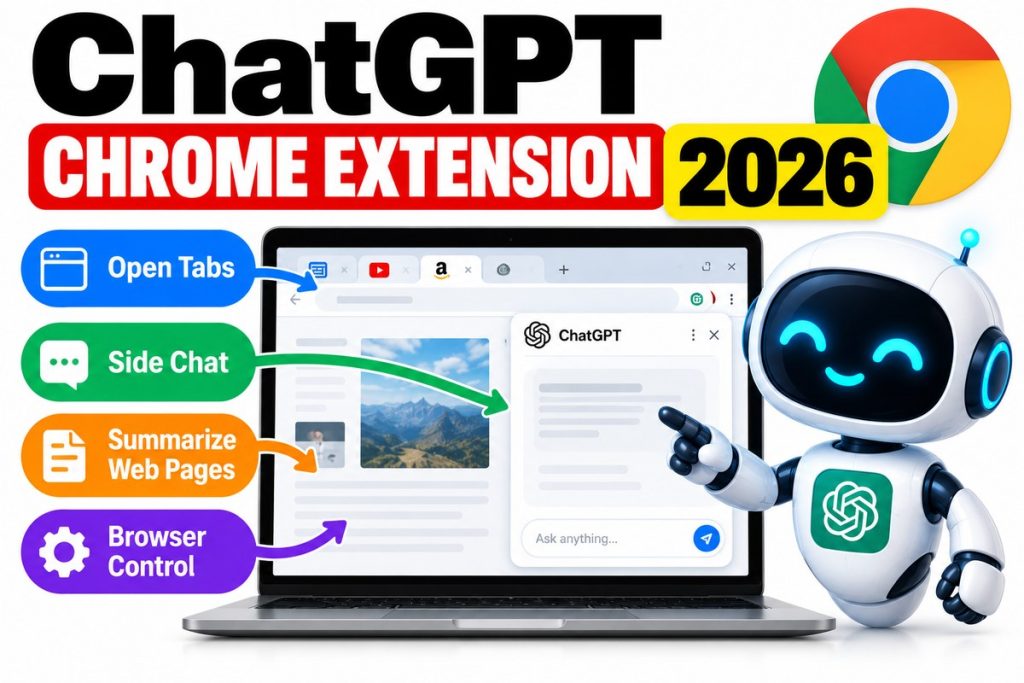
ChatGPT Chrome Extension 2026: How to Use Open Tabs, Side Chat & Browser Control
The ChatGPT Chrome extension is turning ChatGPT into something much closer to an AI assistant that works directly alongside your browser.
Instead of constantly copying text, URLs and information from Chrome into a separate ChatGPT window, the extension can work with browser context such as your current webpage, selected text and open tabs.
Depending on the ChatGPT feature, account and workflow you are using, it can also help with browser tasks such as:
- comparing information across open tabs;
- answering questions about the page you are viewing;
- summarizing selected text;
- answering questions about supported YouTube videos;
- organizing browser tabs;
- filling out forms;
- working across websites;
- downloading files; and
- completing permitted browser actions.
OpenAI’s current browser-extension documentation says ChatGPT can use context from open tabs, while supported workflows can also give ChatGPT browser control through Work or Codex.
That makes the extension particularly interesting as AI moves from simply generating answers toward agentic AI that can take actions.
Here’s how the ChatGPT Chrome extension works in 2026, how to set it up, what Side Chat can do, how open-tab access works and what privacy permissions you should understand before using browser control.
What Is the ChatGPT Chrome Extension?
The ChatGPT Chrome extension is an official browser integration that connects ChatGPT with your existing browser session.
The key word is:
existing.
Unlike an AI browser running in a completely separate environment, the extension can work with supported context from the browser profile you are already using.
That can include:
- your open tabs;
- the page you are viewing;
- selected text;
- supported webpage content;
- browser workflows; and
- signed-in websites when appropriate permissions are granted.
OpenAI’s official browser-extension documentation is available here:
OpenAI — Browser Extension Documentation
The extension is part of a broader transition toward AI systems that do more than answer questions.
If you’re new to that concept, read our explanation of what agentic AI is and how AI agents work:
Elite Era Trends — What Is Agentic AI?
What Can the ChatGPT Chrome Extension Do?
The exact capabilities available can depend on your account, browser, ChatGPT mode, rollout status and workspace settings.
OpenAI currently documents several major capabilities.
1. Ask ChatGPT About the Page You’re Viewing
You can open ChatGPT’s Side Chat alongside a webpage and ask questions without manually copying the page into another tab.
For example, imagine you are reading a 4,000-word report.
Instead of copying the report into ChatGPT, you could potentially ask:
“Summarize the main conclusions on this page.”
Or:
“What are the three most important numbers in this report?”
This makes ChatGPT act more like a contextual assistant inside your browsing workflow.
2. Use Open Chrome Tabs as Context
One of the most useful features is the ability to reference open tabs.
OpenAI says users can mention an open browser tab when they want ChatGPT to use that page as context.
This is useful because many real-world tasks involve information spread across several webpages.
For example, suppose you have three laptop product pages open.
Instead of manually pasting the specifications from each page into ChatGPT, you could ask the AI to help compare the tabs.
Possible request:
“Compare the laptops in my open tabs by RAM, storage, display, battery claims and price.”
That turns multiple browser tabs into usable AI context.
ChatGPT Can Compare Multiple Open Tabs
The ability to work across tabs becomes especially valuable for comparison tasks.
Examples include comparing:
- products;
- hotels;
- contractors;
- software plans;
- insurance information;
- job listings;
- research sources;
- travel options;
- business vendors; and
- service providers.
Fresh reporting on OpenAI’s browser update highlighted examples in which ChatGPT compared products across tabs and worked with browser information without requiring users to manually transfer the content.
The broader idea is simple:
open webpages become context for the AI.
3. ChatGPT Side Chat
The extension also includes a Side Chat experience in supported browsers.
Side Chat opens ChatGPT next to the page you are viewing.
OpenAI currently says Side Chat is supported in:
- Google Chrome;
- Microsoft Edge;
- Brave; and
- Vivaldi.
Opera supports browser workflows and tab mentions but does not currently support Side Chat according to OpenAI’s documentation.
With Side Chat open, you can ask about the webpage without leaving it.
For example:
“Explain this article in simple language.”
“Does this page mention a cancellation fee?”
“Find the difference between the basic and premium plans.”
“Summarize the arguments for and against this proposal.”
This eliminates a lot of copying and tab switching.
Does Side Chat Save Your Conversations?
Yes, according to OpenAI.
Chats started through Side Chat can also appear in ChatGPT, and recent ChatGPT conversations can be opened from the browser Side Chat.
That means you can begin a conversation while browsing and continue it later in the ChatGPT app.
4. Highlight Text and Ask ChatGPT
The extension also supports working with selected text.
Instead of giving ChatGPT an entire webpage, you can highlight a specific section and ask about only that passage.
For example:
Highlight:
three complicated paragraphs from a research report
Then ask:
“Explain this in plain English.”
Or:
“What does this clause mean?”
Or:
“Summarize this section in three bullet points.”
This is useful when the webpage is long but only one small section matters.
5. Right-Click and Ask ChatGPT
In browsers supporting Side Chat, OpenAI says users can right-click a webpage and select:
Ask ChatGPT
The browser then opens Side Chat with relevant page context.
This is useful for quick tasks where opening a separate ChatGPT conversation would create unnecessary friction.
6. Ask ChatGPT About YouTube Videos
The Chrome extension can also work with supported YouTube video context.
OpenAI says that when captions are available, ChatGPT can use a video’s timestamped transcript to:
- summarize the video;
- explain sections;
- answer questions;
- identify topics; and
- work with the video’s spoken content.
For example:
“Summarize this 40-minute video in eight bullet points.”
Or:
“At what timestamp does the speaker discuss AI agents?”
Or:
“What are the main arguments made in the second half?”
This can be particularly useful for:
- tutorials;
- interviews;
- podcasts;
- lectures;
- product demonstrations; and
- long educational videos.
ChatGPT Browser Control: What Does It Mean?
Reading browser context and controlling a browser are different capabilities.
Browser context means ChatGPT can use information from the page or tabs.
Browser control means ChatGPT can perform permitted interactions.
OpenAI’s documentation says supported browsers can be selected through ChatGPT’s browser integration for Work or Codex tasks.
A browser-control workflow could potentially include actions such as:
- opening pages;
- navigating websites;
- clicking;
- entering information;
- moving between tabs;
- downloading files;
- interacting with supported forms; and
- completing browser tasks.
This is where the extension becomes increasingly agentic.
Instead of:
“Tell me how to do this.”
the request can move toward:
“Help do this for me.”
Example: Researching Vendors Across Tabs
Imagine you need to choose between four software companies.
You open each company’s pricing page.
A basic chatbot workflow would require you to:
- Copy information from company one.
- Paste it into ChatGPT.
- Copy information from company two.
- Paste that.
- Repeat for every company.
- Ask ChatGPT to compare everything.
With browser context, you could potentially ask ChatGPT to work from the open tabs.
A useful prompt might be:
“Compare the vendors in my open tabs. Create a table with monthly price, included users, storage, support options and cancellation terms. Flag anything you cannot verify.”
That is a much more natural workflow.
Example: Filling Out a Form
OpenAI has also demonstrated browser workflows involving forms.
A user could potentially ask ChatGPT to use information from one source to help prepare another form.
For example:
“Use the information in this event brief to fill in the registration form, but stop before submitting.”
That final instruction is important.
For consequential actions, a good practice is to make the AI:
prepare → review → approve → submit
rather than letting the system perform everything without supervision.
Example: Shopping Comparison
Suppose you are shopping for a sofa.
You open three options.
You might ask:
“Compare these three sofas based on size, material, delivery time, price and return policy.”
Instead of switching between pages and manually creating notes, ChatGPT can potentially organize the information.
The same workflow could work for:
- televisions;
- computers;
- appliances;
- software;
- insurance plans;
- hotels; and
- other products or services.
How to Install the ChatGPT Chrome Extension
OpenAI’s current instructions connect browser setup with the ChatGPT desktop app.
The basic process is:
Step 1: Update ChatGPT
Make sure the ChatGPT desktop application is current.
Browser functionality changes rapidly, so using an outdated app can cause connection or availability problems.
Step 2: Open Computer Use Settings
In the ChatGPT desktop app, go to:
Settings → Computer Use
Step 3: Select Chrome
Choose Google Chrome.
If Chrome does not appear immediately, OpenAI says you may need to expand the browser options.
Step 4: Install the Extension
Choose the install option.
This should take you to the browser’s extension store.
Review the extension and the permissions Chrome requests before installing it.
Step 5: Return to ChatGPT
After installation, return to:
Settings → Computer Use
OpenAI says the browser should show:
Manage
once it is connected correctly.
Step 6: Start a Supported Browser Task
In an eligible ChatGPT Work or Codex conversation, the browser can be selected through an @ mention.
For example:
@Chrome
You can then give ChatGPT a browser-related task.
Availability can depend on your plan, device, workspace settings and rollout.
Which Browsers Support the ChatGPT Extension?
OpenAI currently lists support for:
| Browser | Tab context | Browser control | Side Chat |
|---|---|---|---|
| Google Chrome | Yes | Yes | Yes |
| Microsoft Edge | Yes | Yes | Yes |
| Brave | Yes | Yes | Yes |
| Vivaldi | Yes | Yes | Yes |
| Opera | Yes | Yes | No |
Feature availability can still vary by account or workspace.
This is significant because ChatGPT’s browser integration is no longer limited to Chrome alone.
ChatGPT Chrome Extension vs Built-In ChatGPT Browser
These two features are easy to confuse.
They serve different purposes.
Chrome Extension
The extension connects ChatGPT with your existing supported browser profile.
That can be useful when you need:
- existing Chrome tabs;
- a signed-in session;
- your existing browser profile;
- Chrome extensions;
- websites you’re already using.
Built-In Browser
ChatGPT’s desktop app also has its own built-in browser.
OpenAI says this browser uses its own separate browser state.
It can:
- open webpages;
- work across several tabs;
- download files;
- support sign-ins;
- navigate websites; and
- work without using your normal Chrome profile.
OpenAI’s official built-in-browser guide is available here:
OpenAI — Using the Built-In Browser in ChatGPT
Which Should You Use?
Use the Chrome extension when the task depends on:
your existing Chrome session.
Use ChatGPT’s built-in browser when you want:
browser work contained inside the ChatGPT desktop application.
What Happened to ChatGPT Atlas?
OpenAI previously experimented with Atlas as a browser-oriented AI product.
Atlas was retired in August 2026.
OpenAI said it was moving browser-based agentic capabilities into ChatGPT and Codex instead.
The company specifically highlighted improvements around:
- multiple browser tabs;
- downloads;
- navigation;
- account login support; and
- browser-based agentic workflows.
That means the Chrome extension and ChatGPT desktop browser are part of a broader strategy rather than isolated browser experiments.
Is the ChatGPT Chrome Extension an AI Agent?
The extension itself is better understood as a browser integration.
But it can become part of an agentic AI workflow.
The difference matters.
A browser extension gives ChatGPT access to browser context and permitted browser capabilities.
An agentic system can then:
- understand a goal;
- inspect information;
- decide what to do;
- use the browser;
- observe the result;
- adjust;
- continue toward completion.
We explain that process in detail in our guide:
What Is Agentic AI? How It Works, Examples & AI Agents vs Generative AI
The browser becomes one of the AI agent’s tools.
ChatGPT Chrome Extension vs Traditional ChatGPT
Here is the key difference:
| Traditional ChatGPT | ChatGPT + Browser Extension |
|---|---|
| You provide context manually | Can use supported browser context |
| Often requires copy/paste | Can work with webpage context |
| Separate from browser workflow | Side Chat works alongside pages |
| Usually one supplied page/link | Can work with open tabs |
| Text interaction | Can support browser actions |
| User performs web steps | AI can assist with permitted steps |
The extension reduces the boundary between the chatbot and the browser.
ChatGPT Chrome Extension vs Google Gemini in Chrome
Google is also integrating Gemini deeply into browsing and workplace tools.
Both companies are moving toward AI systems that can understand webpage context and perform more complicated tasks.
The important competitive shift is not simply:
ChatGPT vs Gemini
but:
Which AI can understand what you’re doing and safely help complete the workflow?
Google is taking a similar approach with its growing Gemini agent ecosystem.
We cover Google’s workplace strategy separately:
Google Gemini Agent for Work: Features & Availability
ChatGPT Chrome Extension and Codex
The browser extension is also particularly important for Codex.
Codex can use browser access while completing development-related tasks.
For example, an AI coding agent might:
- modify an application;
- open the application in a browser;
- inspect what happened;
- reproduce a bug;
- make another code change;
- test again.
This creates an agent loop in which AI does not simply write code.
It can potentially:
write → test → inspect → fix → verify.
Elite Era Trends also covers newer Codex capabilities such as:
OpenAI Codex Composer Predictions
Useful ChatGPT Chrome Extension Prompts
Here are some practical examples.
Compare Products
“Compare the products in these open tabs by price, specifications, warranty and return policy. Put the results in a table and cite which tab each fact came from.”
Research
“Review the sources in my open tabs. Summarize where they agree, where they disagree and which claims have the strongest evidence.”
YouTube
“Summarize this video and give me timestamps for the sections about AI agents.”
Explain Selected Text
“Explain the highlighted section in simple language without changing its meaning.”
Vendor Comparison
“Compare the vendors in these tabs by price, features, support and contract requirements.”
Form Preparation
“Use the information in this document to prepare the form I have open. Stop before submitting anything.”
Tab Organization
“Review my open tabs and group them by project. Tell me which appear duplicated or no longer relevant before closing anything.”
The final wording is useful because it tells the AI not to perform destructive actions without approval.
What Permissions Does the ChatGPT Chrome Extension Request?
This is one of the most important sections to understand.
A browser-control extension requires substantial browser permissions because it cannot perform browser tasks without access to browser features.
OpenAI says Chrome may display permission requests involving capabilities such as:
- accessing the page debugger;
- reading and changing webpage data;
- accessing browsing history;
- displaying notifications;
- working with bookmarks;
- managing downloads;
- communicating with cooperating native applications; and
- managing tab groups.
These permissions can sound broad.
They are broad because browser automation requires meaningful browser access.
However, OpenAI says ChatGPT also applies its own website confirmations, allowlists, blocklists and browser-access settings.
Does ChatGPT Automatically Access Every Website?
OpenAI says ChatGPT asks before interacting with a new website by default.
Users can choose options such as:
Allow once
Allow for this site
Allow for all sites
or:
Decline
For most users, allowing specific sites is safer than granting universal access.
Should You Choose “Allow for All Sites”?
Think carefully before doing so.
OpenAI itself labels universal website access as an elevated-risk option.
Giving an AI access to every website means fewer permission interruptions—but also fewer opportunities to notice that the system is accessing a site you did not expect.
For sensitive work, limited permissions are generally the better approach.
Can You Block Websites From ChatGPT?
Yes.
OpenAI says website access can be managed through:
Settings → Computer Use → Manage
Users can maintain allowed and blocked domains.
A blocked website should not be available to ChatGPT through that browser workflow unless the setting is changed.
This can be useful for preventing access to sensitive sites.
For example, someone using browser AI for general research might choose to block:
- banking websites;
- health portals;
- internal administrative systems; or
- other services the AI does not need.
Can ChatGPT Read Your Browser History?
Browser-history access is treated separately.
OpenAI says ChatGPT asks when it wants to use browser history.
The documentation also says browser-history permission does not have an always-allow option.
This makes sense because browser history can contain particularly sensitive information, including:
- searches;
- internal company URLs;
- account pages;
- private websites; and
- browsing activity from signed-in devices.
Only approve browser-history access when it is genuinely necessary for the task.
Does OpenAI Store Everything You Do in Chrome?
OpenAI says it does not maintain a separate complete record of every browser action performed through the extension.
However, browser activity can become part of ChatGPT context.
Examples include:
- webpage text read by ChatGPT;
- screenshots;
- browser tool calls;
- summaries;
- messages; and
- other content used inside the conversation.
Your normal ChatGPT data settings apply to content processed as part of the chat.
That distinction is important.
“Not keeping a separate complete browser log” does not mean that no browser-derived information can ever appear in ChatGPT data.
Is the ChatGPT Chrome Extension Safe?
The extension can be useful, but browser access deserves more caution than an ordinary chatbot conversation.
The reason is straightforward.
If an AI only produces text, a mistake creates:
a bad answer.
If an AI can interact with websites, a mistake can potentially create:
a bad action.
That means users should pay attention to:
- website permissions;
- browser profiles;
- active accounts;
- sensitive information;
- payment pages;
- form submissions; and
- destructive actions.
A useful rule is:
give the AI the minimum access needed to complete the task.
Beware of Prompt Injection
One major issue with browser agents is prompt injection.
A webpage can contain text designed to influence an AI system.
For example, malicious page content could attempt to instruct the AI to:
- ignore the user’s task;
- reveal information;
- navigate elsewhere;
- copy sensitive content;
- perform an unwanted action.
OpenAI specifically warns users to treat webpage content as untrusted context.
This is particularly important when an AI agent has access to several tools.
The more the system can do, the more carefully users should control its permissions.
Human Approval Still Matters
For low-risk tasks, automation can save significant time.
For consequential actions, human review remains important.
Examples include:
- purchases;
- sending important emails;
- deleting information;
- publishing content;
- changing account settings;
- financial transactions;
- submitting official forms.
A strong workflow is:
AI prepares → human reviews → human approves → AI completes
rather than:
AI decides everything automatically.
Troubleshooting the ChatGPT Chrome Extension
If the extension is not working, OpenAI currently recommends several checks.
Update ChatGPT
Install the latest desktop-app version.
Restart Chrome
Close and reopen the browser.
Check Side Chat
Open ChatGPT from the Chrome toolbar or Extensions menu and confirm that Side Chat loads.
Check Computer Use
Go to:
Settings → Computer Use
Chrome should display:
Manage
rather than:
Install.
Check Your Chrome Profile
If you use multiple Chrome profiles, make sure you are working in the same profile where the extension was installed.
Start a New Work or Codex Chat
A new conversation can sometimes clear connection-specific state.
Restart the ChatGPT Desktop App
Close and reopen ChatGPT.
Reinstall the Extension
If the connection still fails, reinstall it through Computer Use settings.
OpenAI’s latest setup and troubleshooting instructions can be checked here:
Official ChatGPT Browser Extension Guide
Why the ChatGPT Chrome Extension Matters
The extension may look like a convenience feature.
But it represents something bigger.
The earliest generative-AI workflow was:
You → copy information → ChatGPT → receive answer → manually perform action
Browser integration moves toward:
You → describe goal → ChatGPT gathers context → AI assists with actions → you review result
That is a major change.
The browser is where a huge amount of digital work already happens.
People use it for:
- email;
- CRM software;
- banking;
- e-commerce;
- research;
- cloud documents;
- project management;
- analytics;
- customer support;
- social media; and
- business applications.
If AI can safely work inside that environment, browser agents could become one of the most important practical uses of agentic AI.
ChatGPT Browser Tools and Small Businesses
Small businesses may find browser agents particularly useful because owners often switch between many web applications.
An AI browser workflow might potentially help with:
- competitor research;
- lead research;
- supplier comparisons;
- customer support;
- online forms;
- CRM updates;
- research;
- reporting; and
- repetitive browser administration.
That connects directly with the broader shift toward AI agents for business.
For more practical examples:
AI Agents for Small Business: 15 Practical Uses
Can ChatGPT Fill Out Forms in Chrome?
Supported browser-control workflows can interact with webpages, including form-related tasks.
However, users should review important information before submission.
For consequential forms, a good prompt is:
“Fill in the form using the information I provided, but stop before submitting.”
This gives you an opportunity to verify every field.
Can ChatGPT Download Files From Chrome?
OpenAI’s browser tooling supports download-related workflows where available.
The Chrome extension may request permission to manage downloads because browser tasks can involve saving files.
Again, availability can depend on the specific ChatGPT mode and account.
Can ChatGPT Use Websites Where I’m Already Logged In?
This is one of the main reasons to use the extension instead of the built-in browser.
OpenAI says the Chrome extension is useful when the task needs your:
- existing Chrome profile;
- signed-in browser session;
- open tabs; or
- Chrome environment.
However, always check which account is currently active before allowing ChatGPT to proceed.
You do not want an agent using your work account when you intended to use your personal account—or vice versa.
Is the ChatGPT Chrome Extension Free?
Availability can vary by feature, ChatGPT plan, workspace configuration and rollout.
Some browser context features may not require the same account level as more advanced browser-control or agent workflows.
Because OpenAI changes product availability over time, users should check the official extension documentation rather than assuming every feature is available on every ChatGPT plan.
Does ChatGPT Chrome Extension Work on Windows?
OpenAI’s desktop browser and browser-integration documentation supports workflows on macOS and Windows, subject to account and feature availability.
Does ChatGPT Chrome Extension Work on Mac?
Yes, supported browser-extension workflows are available on macOS where eligible.
OpenAI also documents a keyboard shortcut for opening Side Chat on supported Mac configurations:
Command + Shift + .
Does ChatGPT Chrome Extension Work With Brave?
Yes.
OpenAI currently lists Brave among the supported browsers for tab mentions, browser control and Side Chat.
Does ChatGPT Chrome Extension Work With Edge?
Yes.
Microsoft Edge supports the extension workflow, including Side Chat according to OpenAI’s current documentation.
Does ChatGPT Chrome Extension Work With Opera?
Opera supports tab mentions and browser control, but OpenAI currently says it does not support Side Chat.
Frequently Asked Questions
What is the ChatGPT Chrome extension?
The ChatGPT Chrome extension connects ChatGPT with supported browser context such as webpages, open tabs and selected text and can support browser-control workflows in eligible ChatGPT modes.
Can ChatGPT see my open Chrome tabs?
Yes, when you intentionally use supported tab-context features. OpenAI says users can mention open tabs to give ChatGPT context from those pages.
Can ChatGPT compare multiple tabs?
Yes. Open-tab context can be used for comparison tasks such as comparing products, vendors, webpages or other information across tabs.
Can ChatGPT control Chrome?
Supported ChatGPT Work and Codex workflows can use browser control through the extension when the feature is enabled and the appropriate permissions are granted.
What is ChatGPT Side Chat?
Side Chat opens ChatGPT next to the webpage you’re browsing so you can ask about that page without switching to a separate ChatGPT tab.
Can ChatGPT summarize YouTube videos in Chrome?
When captions are available, OpenAI says supported Side Chat workflows can use timestamped video transcripts to summarize or answer questions about a YouTube video.
Can ChatGPT read highlighted text?
Yes. Supported browsers let users select webpage text and bring that selection into ChatGPT.
Can ChatGPT fill out online forms?
Supported browser-control workflows can interact with webpage elements, including form-related tasks. Important forms should be reviewed before submission.
Does ChatGPT automatically access all my websites?
No. OpenAI says ChatGPT asks before interacting with new websites by default unless you have granted broader permission.
Can I block ChatGPT from certain websites?
Yes. Website permissions, allowlists and blocklists can be managed from ChatGPT’s Computer Use settings.
Can ChatGPT access browser history?
ChatGPT can request browser-history access when needed, but OpenAI says history access requires approval and does not have a permanent always-allow option.
Is the ChatGPT Chrome extension the same as the built-in browser?
No. The extension works with your existing supported browser profile, while ChatGPT’s built-in browser uses its own browser environment.
Is the ChatGPT Chrome extension an AI agent?
The extension itself provides browser integration. When combined with ChatGPT’s agentic capabilities, it can become one of the tools an AI agent uses to complete multi-step tasks.
The ChatGPT Chrome extension in 2026 represents a major step beyond the old copy-and-paste chatbot workflow.
It can bring ChatGPT directly alongside the webpages you already use and support features such as:
- open-tab context;
- Side Chat;
- selected-text questions;
- YouTube transcript analysis;
- browser workflows;
- tab management;
- form assistance;
- downloads; and
- permitted browser actions.
The most important change is not simply that ChatGPT can see a webpage.
It is that ChatGPT can increasingly use browser context while helping complete a task.
That turns the browser from something you manually operate alongside AI into something AI can potentially help operate with you.
The safest approach is still to keep important actions under human supervision.
Use limited website permissions.
Review the account and page ChatGPT is using.
Stop before consequential submissions or payments.
And give the AI only the access it actually needs.
As agentic AI develops, browser integrations such as the ChatGPT Chrome extension may become one of the clearest examples of the shift from:
AI that answers questions
to:
AI that helps get work done.