ChatGPT Slides 2026: How to Create, Edit & Export AI Presentations
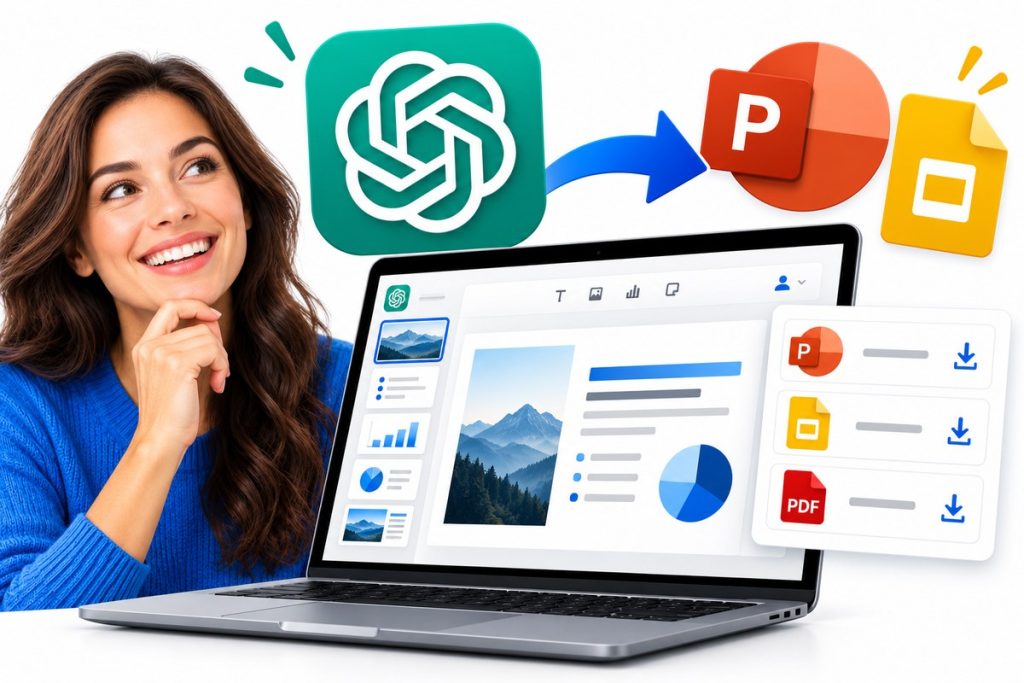
ChatGPT Slides 2026 creating presentations and exporting to PowerPoint Google Slides and PDF
ChatGPT Slides is OpenAI’s new presentation-building feature that lets users create editable slide decks directly with ChatGPT, collaborate with teammates, present the deck and export it to traditional presentation software.
Instead of asking ChatGPT to generate an outline and then manually rebuilding everything in PowerPoint, users can now create an actual presentation from:
- a conversation;
- uploaded files;
- an outline;
- an existing example deck; or
- a presentation template.
OpenAI began rolling out ChatGPT Slides on October 16, 2026.
The feature is currently available to eligible:
ChatGPT Pro, Business and Enterprise users with Space access.
OpenAI says users can export presentations to:
PowerPoint (.pptx), PDF and Google Slides
from the web.
That turns ChatGPT from a tool that merely helps write presentation content into a platform where the presentation itself can be created, edited and shared.
Here is how ChatGPT Slides works, who can use it, what it can create and how it compares with traditional presentation tools.
What Is ChatGPT Slides?
ChatGPT Slides is a presentation-creation and collaboration feature built around ChatGPT Space.
It allows users to build editable slide decks while working with ChatGPT.
Instead of receiving only text describing what a presentation should contain, ChatGPT can help create the actual slides.
The presentation can include:
- text;
- images;
- shapes;
- tables;
- charts;
- layouts;
- speaker notes; and
- other presentation elements.
Users can manually edit those elements or ask ChatGPT to change them.
For example, you could say:
“Turn this quarterly report into an eight-slide executive presentation.”
ChatGPT can create the presentation.
You might then ask:
“Make slide four more visual and reduce the text.”
Then:
“Turn the revenue figures into a chart.”
Then:
“Add speaker notes with talking points for every slide.”
The presentation remains editable throughout the process.
When Did ChatGPT Slides Launch?
OpenAI began rolling out ChatGPT Slides on:
October 16, 2026.
The rollout is gradual.
That means even if your subscription qualifies, you may not immediately see Slides in your account.
OpenAI says eligible users need:
- ChatGPT Pro, Business or Enterprise;
- access to Space; and
- an account included in the current rollout.
If you qualify but cannot find the feature yet, it may simply not have reached your account.
Who Can Use ChatGPT Slides?
At launch, OpenAI lists ChatGPT Slides for:
| ChatGPT plan | ChatGPT Slides |
|---|---|
| Free | Not currently listed |
| Go | Not currently listed |
| Plus | Not currently listed |
| Pro | Yes, with Space access |
| Business | Yes, with Space access |
| Enterprise | Yes, with Space access |
Availability can still depend on rollout status and workplace settings.
Business and Enterprise administrators may also control which features employees can access.
Is ChatGPT Slides Available on ChatGPT Plus?
Not currently according to OpenAI’s published availability information.
OpenAI lists Slides as available for:
Pro, Business and Enterprise
plans with Space access.
That means having a paid ChatGPT Plus subscription by itself does not currently guarantee access to ChatGPT Slides.
This could change in the future.
Anyone checking availability should rely on the current ChatGPT Slides product page or Help Center because OpenAI frequently expands features to additional plans after launch.
How to Create a Presentation With ChatGPT Slides
OpenAI currently provides several ways to begin creating a presentation.
Method 1: Ask ChatGPT in Work
Open ChatGPT Work and ask it to create:
- slides;
- a presentation; or
- a deck.
Describe:
- the subject;
- target audience;
- number of slides;
- objective;
- information to include; and
- preferred tone or visual style.
For example:
“Create a 10-slide presentation for executives explaining our Q3 performance. Cover revenue, customer growth, churn, risks and next-quarter priorities.”
ChatGPT can turn that request into an editable presentation.
Method 2: Create Slides From Existing Files
You can also provide source material.
For example, upload:
- a PDF report;
- spreadsheet;
- project brief;
- research document;
- meeting notes; or
- another presentation.
Then ask:
“Turn these files into a seven-slide presentation for a client meeting.”
This may be particularly useful for people who already use ChatGPT for document analysis.
Instead of manually extracting the important points and rebuilding them in presentation software, the same workflow can continue into a slide deck.
Method 3: Create Slides From a Conversation
A presentation can also begin from work you already completed with ChatGPT.
Imagine spending an hour researching a market with ChatGPT.
When the analysis is finished, you could ask:
“Turn this conversation into a presentation for our leadership meeting.”
ChatGPT can use the discussion as source material.
This is important because the presentation workflow no longer has to begin from scratch.
Research can flow into analysis and then directly into a deck.
Method 4: Start Inside Space
Eligible users can also start directly from Space.
Open:
Space → Create → Slide
and begin with either:
- a blank presentation; or
- a template.
This is useful when you already know you are building a presentation and do not need to begin through a normal ChatGPT conversation.
Can ChatGPT Slides Use Your Existing Template?
Yes.
One of the most useful features for companies is the ability to give ChatGPT an example presentation or template.
The AI can then use that material as guidance for:
- visual style;
- slide structure;
- layout;
- branding;
- typography;
- content organization; and
- presentation format.
For example:
“Create a six-slide project update using this presentation as the style reference.”
This could make ChatGPT Slides much more practical for teams that cannot simply use generic AI-generated designs.
Organizations often have specific:
- brand colors;
- fonts;
- title treatments;
- chart styles;
- presentation structures; and
- logo placement.
A reference deck can help guide the new presentation toward that established style.
Can You Edit ChatGPT Slides Manually?
Yes.
ChatGPT Slides is not simply an image generator that produces a static picture of a presentation.
OpenAI says users can directly edit elements including:
- text;
- images;
- shapes;
- tables; and
- charts.
This matters because AI-generated slides will not always be perfect.
You may want to:
- rewrite one headline;
- adjust a chart;
- move an image;
- change a label;
- remove a paragraph; or
- reorganize a slide.
Those changes can be made directly.
Can ChatGPT Edit Individual Slides for You?
Yes.
You can also select an element and ask ChatGPT to revise it.
Example:
“Make this headline shorter.”
Or:
“Replace this paragraph with three bullets.”
Or:
“Change this chart so it emphasizes year-over-year growth.”
Or:
“Make this slide easier for a nontechnical audience to understand.”
This creates a mixed workflow:
manual editing + AI editing
rather than forcing users to choose one or the other.
Can ChatGPT Create Charts in Slides?
Yes.
OpenAI specifically lists charts among the presentation elements that can be created and edited.
You could ask:
“Turn this revenue table into a chart.”
or:
“Update this chart using the new Q4 figures.”
One advantage is that the chart remains part of the editable presentation rather than simply becoming a static AI-generated image.
However, users should still verify every figure before presenting.
AI can misunderstand data or select a misleading chart style.
For important financial, operational or scientific presentations, check the source data yourself.
Can ChatGPT Generate Images for Presentations?
Yes.
OpenAI says ChatGPT can generate custom images for presentations or use images supplied by the user.
This could be useful for:
- title slides;
- product concepts;
- illustrations;
- diagrams;
- visual explanations;
- marketing concepts; and
- background imagery.
A prompt could be:
“Create a clean visual illustrating how our three-step onboarding process works.”
ChatGPT could generate an appropriate graphic and place it into the deck.
Can ChatGPT Slides Add Speaker Notes?
Yes.
OpenAI provides adding speaker notes as one of its suggested presentation workflows.
For example:
“Add speaker notes to every slide with talking points and transitions.”
That means ChatGPT can help create both:
what the audience sees
and:
what the presenter says.
For someone preparing for an important meeting, this can significantly reduce preparation time.
Can Teams Collaborate on ChatGPT Slides?
Yes.
Collaboration is one of the key differences between ChatGPT Slides and simply asking AI to generate a PowerPoint file.
OpenAI says team members can work on the same presentation together.
People with editing access can edit slides at the same time.
Teams can also use shared comments to discuss changes.
That means the deck can function more like a collaborative document rather than a file repeatedly sent back and forth through email.
Can You Ask ChatGPT to Respond to Comments?
Yes.
OpenAI says collaborators can mention ChatGPT inside comments and ask the AI to make changes.
For example, a manager could leave:
“@ChatGPT simplify this slide and make the business impact clearer.”
ChatGPT can then help perform the requested revision.
OpenAI’s always-on agents called dots can also participate in supported collaborative workflows.
This reflects the broader move toward agentic AI that can work alongside human teams.
Can ChatGPT Slides Export to PowerPoint?
Yes.
On the web, OpenAI says ChatGPT Slides can export presentations to:
PowerPoint.
That produces an editable:
.pptx file
which can then be opened and refined inside Microsoft PowerPoint.
This is important for businesses that already use PowerPoint as their standard presentation platform.
You do not necessarily have to choose between:
ChatGPT Slides or PowerPoint.
A workflow can instead be:
Create in ChatGPT → refine with AI → export → finish in PowerPoint.
Can ChatGPT Slides Export to Google Slides?
Yes.
OpenAI also supports exporting presentations from the web to:
Google Slides.
That means teams using Google Workspace can begin presentation creation in ChatGPT and continue editing inside their normal Google Slides environment.
Again, the goal is not necessarily to replace existing presentation tools completely.
ChatGPT can handle much of the creation and revision process while still allowing teams to continue inside their preferred editor.
Can ChatGPT Slides Export to PDF?
Yes.
OpenAI lists:
PDF export
as another supported option on the web.
PDF is useful when the presentation is finished and you want:
- a non-editable copy;
- a document to email;
- a version for downloading;
- or a presentation preserved in a fixed format.
ChatGPT Slides Export Options
| Format | Supported |
|---|---|
| PowerPoint (.pptx) | Yes |
| Google Slides | Yes |
| Yes | |
| Present directly in ChatGPT | Yes |
OpenAI recommends reviewing exported files before using them.
Formatting can change between presentation systems, so check:
- fonts;
- spacing;
- charts;
- images;
- text wrapping; and
- overall layout.
Can You Present Directly From ChatGPT?
Yes.
You do not have to export the deck before presenting it.
OpenAI says users can present directly from ChatGPT.
This creates an end-to-end workflow:
Create → collaborate → revise → present
without necessarily opening traditional presentation software.
ChatGPT Slides vs PowerPoint
ChatGPT Slides and PowerPoint overlap, but they are not identical.
| Feature | ChatGPT Slides | PowerPoint |
|---|---|---|
| AI-generated slide deck | Yes | AI features available depending on Microsoft tools |
| Prompt-based revisions | Yes | Depends on Copilot availability |
| Manual editing | Yes | Yes |
| Real-time collaboration | Yes | Yes |
| Presentation templates | Yes | Yes |
| Export to .pptx | Yes | Native |
| AI-generated images | Yes | Depends on tools |
| Works directly with ChatGPT conversations | Yes | No |
| Traditional advanced presentation editing | More limited/new | Mature |
PowerPoint remains a much more established presentation editor.
ChatGPT Slides’ biggest advantage is likely the connection between:
conversation → research → files → AI generation → presentation.
ChatGPT Slides vs Google Slides
Google Slides remains one of the easiest tools for browser-based team collaboration.
ChatGPT Slides adds stronger conversational creation.
For example, instead of manually creating ten slides, a user can ask:
“Create an investor update using these metrics and this report.”
The resulting deck can later be exported into Google Slides.
So the tools may complement each other.
ChatGPT can help produce and revise the first draft.
Google Slides can remain the organization’s final editing and sharing environment.
Best ChatGPT Slides Prompts
The quality of an AI presentation depends heavily on the prompt.
Here are some useful examples.
Executive Presentation
“Create an eight-slide executive presentation covering Q3 performance. Include revenue, customer growth, churn, major wins, risks and Q4 priorities. Keep each slide focused on one takeaway.”
Client Proposal
“Create a professional client proposal deck covering the client’s goals, our recommended approach, timeline, deliverables and pricing.”
Product Launch
“Create a 10-slide product-launch deck covering the customer problem, target audience, product features, differentiation, launch plan and success metrics.”
Project Update
“Turn these project notes into a five-slide team update. Cover progress, completed work, current blockers, risks and next steps.”
Research Presentation
“Turn this research report into a seven-slide presentation. Focus on the five most important findings and include one evidence-based takeaway on every slide.”
Simplify a Deck
“Reduce the amount of text in this presentation. Keep no more than three short bullets on each slide and make the key takeaway obvious.”
Executive Version
“Rewrite this presentation for senior executives. Focus on business impact, key risks and decisions required.”
Speaker Notes
“Add speaker notes to each slide with a 30–45 second explanation and a transition to the next slide.”
Tips for Better AI Presentations
ChatGPT can create slides quickly, but speed does not automatically produce a good presentation.
Give It a Specific Audience
Instead of:
“Make a presentation about cybersecurity.”
use:
“Create a six-slide cybersecurity presentation for nontechnical small-business owners.”
Audience changes:
- terminology;
- examples;
- amount of detail;
- tone; and
- structure.
Define the Goal
Tell ChatGPT whether the presentation should:
- educate;
- persuade;
- sell;
- report;
- request approval;
- explain a decision; or
- summarize research.
A sales pitch should not look like an academic lecture.
Limit Each Slide to One Main Point
AI can easily produce slides with too much text.
Ask for:
one main takeaway per slide.
A presentation is not a report pasted onto slides.
Upload Reliable Source Material
When the deck involves factual information, provide the documents ChatGPT should use.
That is especially important for:
- company metrics;
- financial results;
- research;
- regulatory information;
- scientific findings; and
- client data.
Verify Numbers
Always check:
- financial numbers;
- percentages;
- dates;
- charts;
- citations; and
- calculations.
A visually polished slide can still contain an incorrect number.
Is ChatGPT Slides an Example of Agentic AI?
Partly.
The presentation feature itself is an AI-assisted creation environment.
But it sits inside a larger OpenAI ecosystem where AI increasingly works across:
- conversations;
- files;
- tools;
- shared workspaces;
- agents;
- and ongoing tasks.
That broader movement is closely related to agentic AI.
Instead of only asking:
“Write slide content for me.”
a user can increasingly ask:
“Create the presentation, revise it using feedback, update the charts and prepare it for the meeting.”
That is a much longer workflow.
For a deeper explanation of this shift, read Elite Era Trends’ guide to What Is Agentic AI?
How ChatGPT Slides Fits With ChatGPT Work
ChatGPT Slides is particularly relevant to ChatGPT Work.
Work is designed for substantial professional tasks where ChatGPT can work across information and tools rather than only provide short answers.
A presentation workflow might look like:
Research → analyze files → create charts → build presentation → collaborate → revise → export
That means Slides can become an output format for work already being performed elsewhere in ChatGPT.
This complements tools such as ChatGPT Data Agent, which can analyze business information and generate dashboards.
A user could potentially perform data analysis first and then turn the findings into a leadership presentation.
ChatGPT Slides and GPT-6
ChatGPT’s broader professional environment now includes OpenAI’s GPT-6 model family.
Elite Era Trends already covers models such as:
- GPT-6 Astra;
- GPT-6 Sol;
- GPT-6 Luna; and
- OpenAI’s specialized agent and API products.
ChatGPT Slides is different.
It is not simply another model.
It is a product experience built around creating and collaborating on a specific type of work artifact:
presentations.
That distinction matters.
Users typically care less about which model generates every individual text box than whether the final presentation is:
- accurate;
- editable;
- visually clear;
- easy to collaborate on; and
- compatible with their normal software.
Can ChatGPT Slides Replace PowerPoint?
Not completely.
PowerPoint has decades of mature functionality for:
- animations;
- slide masters;
- advanced formatting;
- corporate templates;
- presenter tools;
- embedded media;
- add-ins;
- detailed layout control; and
- complex enterprise workflows.
ChatGPT Slides is much newer.
Its advantage is different.
It reduces the work needed to move from:
idea → outline → first draft → revisions.
For many users, the most practical workflow may be:
Create with ChatGPT Slides → export to PowerPoint → perform final polishing.
Can ChatGPT Slides Replace Google Slides?
Again, probably not for every user.
Google Slides already provides mature browser-based collaboration.
But ChatGPT Slides can potentially reduce the time required to produce the first version of a presentation.
Teams may use:
ChatGPT for creation
and:
Google Slides for established collaboration and final delivery.
The ability to export directly to Google Slides makes this combined workflow much easier.
What Are the Limitations?
ChatGPT Slides is still new.
Important limitations include:
Limited Initial Availability
The feature is currently restricted to eligible Pro, Business and Enterprise users with Space access.
Gradual Rollout
Qualifying users may not receive access immediately.
AI Errors
ChatGPT can still produce:
- incorrect statements;
- incorrect numbers;
- weak chart choices;
- unnecessary text; and
- awkward layouts.
Export Differences
Presentations may not look exactly the same after export to another tool.
Windows Requirements
OpenAI notes that local collaborative Slides behavior on Windows can depend on the required system component and Windows version.
Users who cannot use the local experience may still be able to work through cloud mode or the web.
Frequently Asked Questions
What is ChatGPT Slides?
ChatGPT Slides is OpenAI’s presentation-creation feature that lets eligible users create, edit, collaborate on, present and export slide decks directly from ChatGPT.
When did ChatGPT Slides launch?
OpenAI began rolling out ChatGPT Slides on October 16, 2026.
Is ChatGPT Slides free?
OpenAI currently lists Slides for eligible Pro, Business and Enterprise plans with Space access. Free, Go and Plus are not currently listed as supported plans.
Does ChatGPT Plus include Slides?
Not according to OpenAI’s current availability information. Slides is currently listed for Pro, Business and Enterprise plans with Space access.
Can ChatGPT create PowerPoint presentations?
Yes. ChatGPT Slides can create editable presentations and export them to PowerPoint on the web.
Can ChatGPT Slides export a PPTX file?
Yes. PowerPoint export produces an editable presentation file that can be continued in Microsoft PowerPoint.
Can ChatGPT create Google Slides?
ChatGPT Slides supports exporting presentations to Google Slides from the web.
Can ChatGPT Slides export to PDF?
Yes.
Can I upload an existing presentation?
You can provide source files or an example deck to guide the presentation’s content, style and layout.
Can ChatGPT edit an existing slide deck?
The Slides workflow supports editing presentations and asking ChatGPT to make changes to elements and layouts.
Can ChatGPT generate charts for presentations?
Yes. OpenAI lists editable charts as part of the Slides experience.
Can ChatGPT generate presentation images?
Yes. ChatGPT can generate custom images or work with uploaded images.
Can multiple people edit ChatGPT Slides?
Yes. OpenAI says teammates with edit access can collaborate on the same presentation.
Can I present without PowerPoint?
Yes. ChatGPT Slides supports presenting directly from ChatGPT.
Is ChatGPT Slides available on Windows?
ChatGPT supports Slides workflows on eligible web and desktop setups, but OpenAI notes that certain local Windows functionality depends on system requirements. Users can use the web/cloud experience when local collaborative Slides support is unavailable.
ChatGPT Slides turns ChatGPT into a much more complete presentation tool.
Instead of using AI only to generate:
- slide titles;
- bullet points;
- presentation outlines; or
- speaker notes,
eligible users can now create the actual editable presentation.
ChatGPT Slides can:
create slides → generate images → build charts → edit layouts → respond to feedback → collaborate with teammates → present → export
The feature began rolling out on:
October 16, 2026
and is currently aimed at eligible:
Pro, Business and Enterprise users with Space access.
On the web, presentations can be exported to:
PowerPoint, PDF and Google Slides.
For professionals who regularly create:
- sales decks;
- quarterly reviews;
- client proposals;
- project updates;
- research presentations;
- product pitches; or
- executive reports,
the biggest benefit may be eliminating much of the manual work between an idea and the first usable presentation.
PowerPoint and Google Slides are unlikely to disappear.